The feature is very useful for a more stream-lined order checking routine. Using this with a mobile device will enable you to avoid printing out packing lists.
By clicking on the Order button in the main iPacky screen, you will see the page presented below:
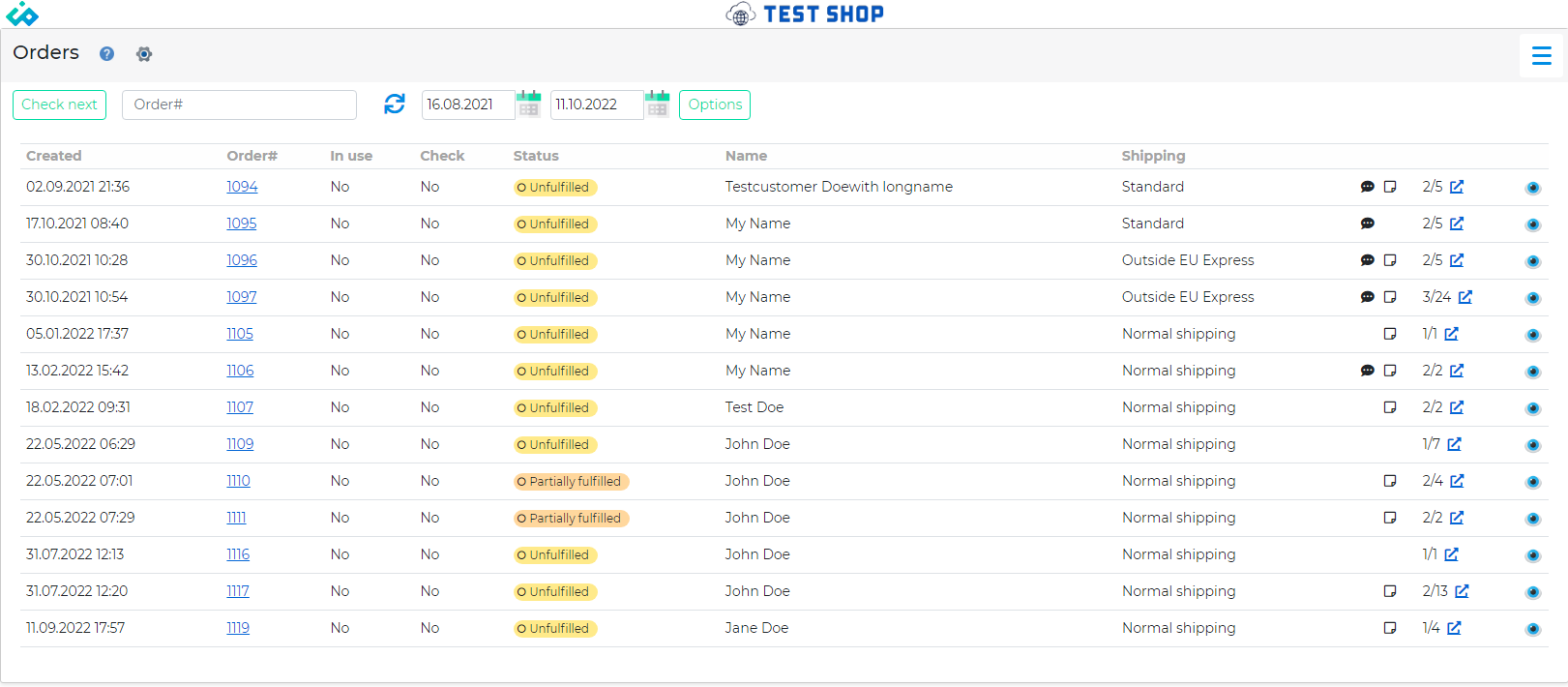
By moving the mouse over the order# you will see a popup with the order line details. On a touch device, you have to click on the created column. By moving the mouse over the name column, you will see a popup with the shipping address details. By moving the mouse over the packers note, and customer’s note icons (if any) you will see the contents. Packers note and customer’s note can be edited in the preview order (eye icon) dialog.
If you also want to see the country the order will be shipped to, you can turn that on in Settings→View
Main notes:
- Orders will be shown based on the filters you set.
- By default, it will show all unchecked open orders.
- The column with number/number shows the number of order lines, and total items on the order. By clicking on the icon just after, it will open the order in Shopify.
- Clicking on the eye icon will show the order details without checking it (Preview order).
- By clicking on the order itself, or the Check next button, the order will be opened in iPacky. This also ensures that two people are not checking the same order at the same time.
- After an order is completely checked, it will return to this screen, and ready for checking the next order.
- The orders will be in the time range selected.
–
An order can be searched for by typing or scanning the order #.
By clicking on the Options button, it will reveal a dialog:
|
Setting |
Description |
|---|---|
|
Already checked |
Will include the already checked orders. |
|
Paid only |
Will only show paid orders. |
|
Show max |
Maximum order to be shown. |
|
Sort order lines on |
How to sort the orders listed. Created means sort on the date the order was created, old to new. Customer means that the orders will be sorted on customer. This means that you will see all orders from the same customer grouped together. Default is Created. |
|
Filter |
Filter can be set to Open orders only, or Open and partially fulfilled orders. |
|
Include order tags |
Only include orders with these tags. Type in a tag and press Enter. It will also show a list of existing tags you can choose from after starting to type. Delete by clicking the X on an existing tag. |
|
Exclude order tags |
Exclude orders that have these tags. This overrides the include tags, if the tag is listed there also. Type in a tag and press Enter. It will also show a list of existing tags you can choose from after starting to type. Delete by clicking the X on an existing tag. |
|
Include orders tagged as incomplete |
If set, will include incomplete orders tagged as incomplete. Default tags can be set in Dashboard→Settings→Defaults |
The settings are applied per session. This means that they will be applied while logged in.
Most of these defaults can be set in Dashboard→Settings→Defaults