iPacky Dashboard→Timecard report
iPacky main menu→More→Timecard report
Only available when logging in through the iPacky Dashboard.
The timecard report is a very useful feature to log what the employees are doing. Here you can register events and find out how they are spending their work day. Packing events will not be available as an event type (and should not be entered as a comment in other events), because this is calculated by iPacky.
It will also be used when calculating the packing speed, since these events will be subtracted from the packing time frame. So let’s say that iPacky calculated the packing to start at 08:00 and ending at 16:00. That’s 8 hours. But in that time frame you added events for lunch (30 minutes), and inventory management (60 minutes). So the total packing time would then be 6.5 hours and will be used to calculate the actual packing speed per hour. This makes this reporting much more accurate.
When entering the screen, it can look like this:
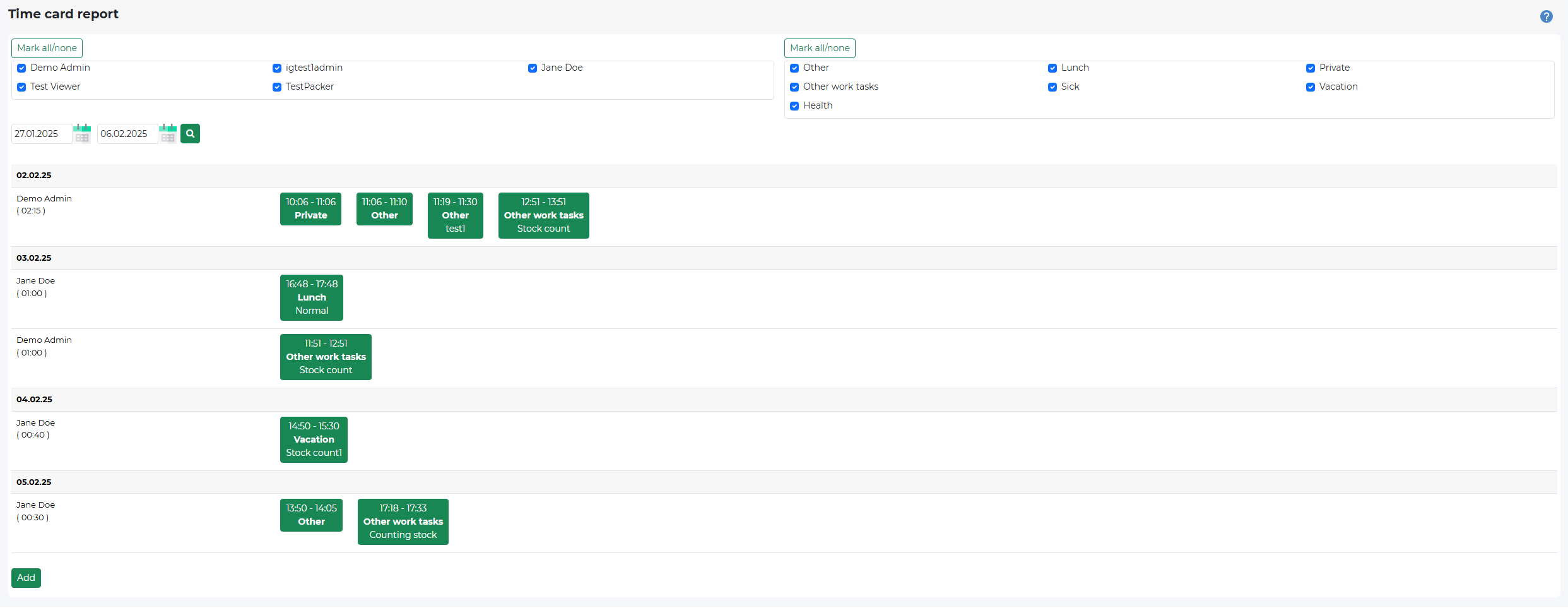
When opening this screen, it will show the data for the current user for the current day.
Select the date range (the end date is including that date), and click on the search icon.
If not a Supervisor or higher, you will not see the user filter, and you can only see your own timecards.
The event filter is used to filter on specific event types.
Click on Add to create a new event:
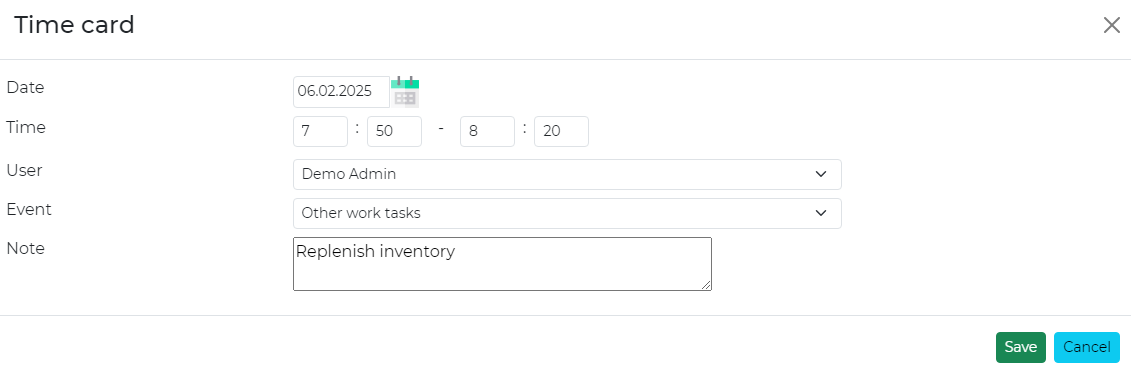
If not a Supervisor or higher, the Date and User is locked, and you can only add events for the current date. If you need to create an event for a different day, contact a user with role of Supervisor or higher.
The time end is not including. Meaning that in this example 08:20, means until 08:20 (including 08:19).
Select the event type, and write a note if you want to specify for example what kind of work.
Click on an existing timecard event to edit or delete:
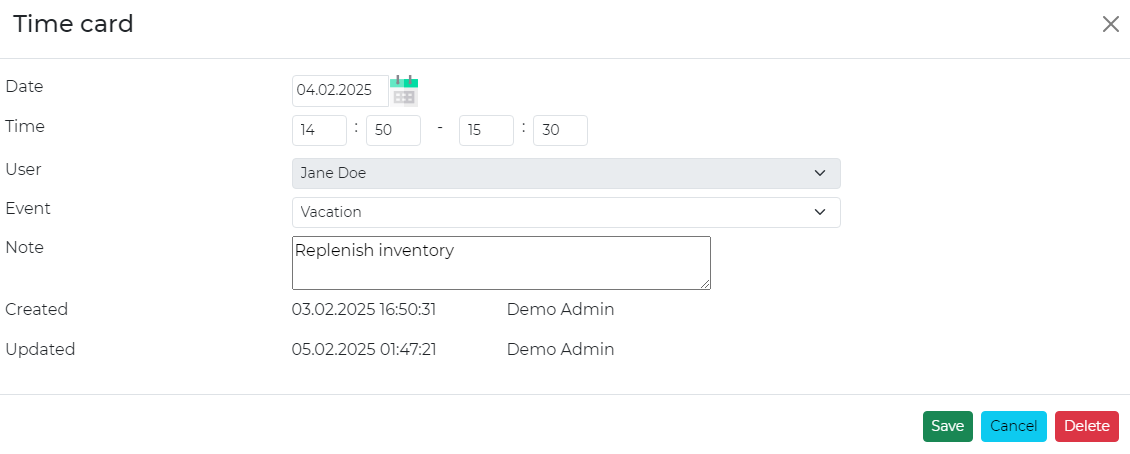
Some rules if not a Supervisor or higher:
- You can only edit your own timecards
- Only timecards from the current day can be fully edited and deleted
- For timecard events from other days, you can only edit the event and note
If other changes are needed, please contact a user with Supervisor role or higher. The user can never be edited
The timecard will also show who created the timecard, and when. If there has been any updates, this will also be shown.
Events
|
Event |
Explanation |
|---|---|
|
Picking |
The time periods for picking |
|
Other work tasks |
Use this for any other work related tasks that are not listed as available events. The note is mandatory to specify what kind of task. This in order to have an overview of which work tasks that was performed |
|
Lunch |
|
|
Private |
A private, non work related event. If this is a privacy issue, do not write anything in the note |
|
Sick |
If calling in sick. For privacy, do not write any details in note |
|
Vacation |
Usually no need to write any note |
|
Health |
Usually no need to write any note |
|
Pause |
Usually no need to write any note |
Best practices:
- Usually you will not know how long an event might take. So the best would be to create the timecard when you start the event, specifying when you think it will end. And then edit this timecard when the event stops. That way you will not forget to enter the event data, and even the time it started
- On the Other work tasks event type you should enter in Note what kind of work
- Contact a user with the role of Supervisor or higher if you need to edit/add a timecard in the past or future
- With personal or private event types, you should not enter any note for privacy reasons. And there is no need for it either, like entering “Bahamas” on Vacation type event. Or for example the Health event type, “Plastic operation”