iPacky Dashboard→Tools→Stock count by product
Available for users with Operator role or higher. Or users with the Inventory update role.
Here you can do your inventory count/inventory stock updates per product. This is recommended over the normal stock count list in iPacky.
This is perfect to do with a mobile device where you can go around and update the on hand stock.
When entering this screen, you will see the different search inputs. You can search on Name, SKU and barcode. Enter the search term, and press Enter.

After looking up a product, it can look like this
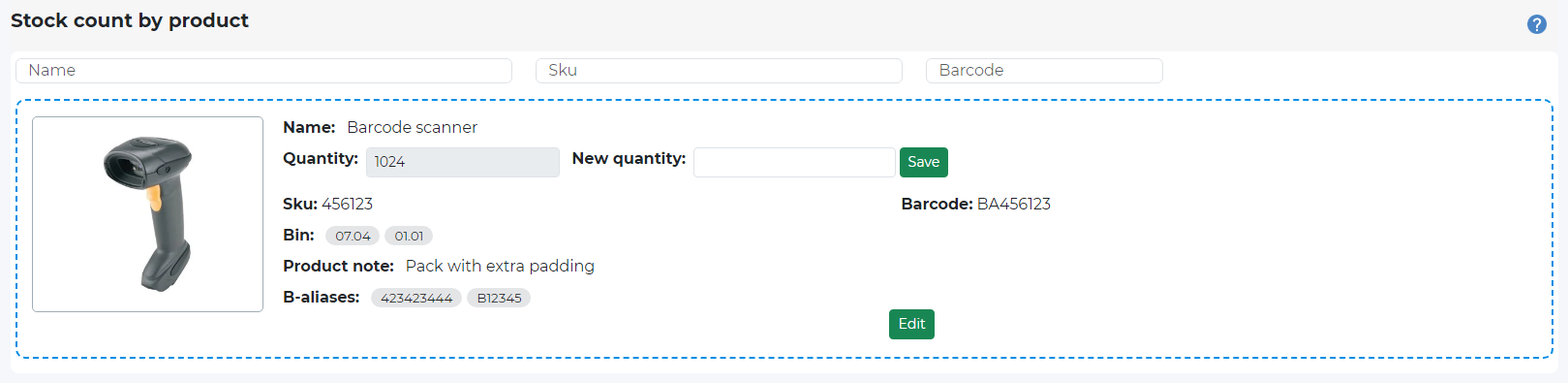
If will show the product card with photo and iPacky metafields info.
The Quantity column shows the current on hand stock quantity for this Shopify location.
You enter the current on hand inventory into the New quantity column and click Save, or press Enter. It then returns to the last search input box you used, and you can do a new search. This new quantity will be written to the on hand quantity in Shopify, and the available stock will also be adjusted accordingly.
If the inventory has not changed, just click on the search input box, and do a new search.
If the product is not stocked at this location, the inventory not being tracked, or not a physical product, the New quantity input will be disabled.
The changes you make are logged during the session on this screen. If you leave this screen, the log will be emptied. Before leaving, you can Print or Export in the Actions menu. It’s recommended that to do this once in a while to avoid losing the changes log.
If you are a Operator or higher, you will also be able to edit the iPacky metafields by clicking on the Edit button. That also means you can update incorrect information registered in the iPacky metafields, such as bin location, and even the product barcode in Shopify.
Actions menu
|
Item |
Description |
|---|---|
|
|
Prints the changes made in the session. This will be reset when you exit the screen. |
|
Export to Excel |
Exports the changes made in the session. This will be reset when you exit the screen. |
Best practices
- It’s recommended that you do not do stock updates while picking&packing is going on. This is because the on hand inventory will be wrong if someone has picked this item, but the order is not fulfilled in Shopify. Then the on hand will be wrong. An exception to this is if you’re sure that this product has not been picked while you perform this adjustment.
- To distribute the list of products to be checked, you can print a products list from Shopify, and distribute parts to each person that is going to do the stock count. Or do an Export to Excel in iPacky Metafields.